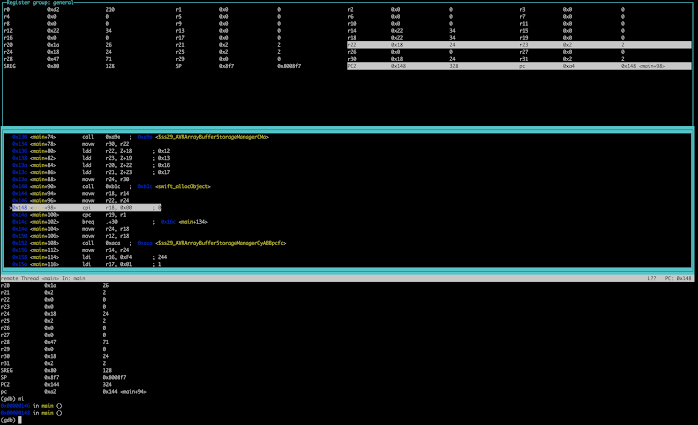
While this has been possible for a while in S4A, with long workarounds, it got a lot easier in the 5.0 beta IDE. Using the "open folder" project structure, save work into a folder and build, the "Terminal" button enables. Press it and you're in a terminal session within the folder, with a command line build ready to go. Run "make simulate-gdb" and you have the program running on simavr, with the debug port open for avr-gdb to attach to. Create a separate Terminal window with the same button for your avr-gdb session and run "avr-gdb main.elf" to pick up the image symbols. In the session choose "target remote :1234" and you're in! My preferred run mode for avr-gdb is "layout asm" or "layout reg" (seen here). Obviously it's not for a beginner, but for an experienced gdb jockey it should prove interesting. Hints You can find these on other blogs about gdb and simavr. But might be useful here. To dump memory.....

Comments
Post a Comment